Table of Contents
Intro
I have been recently working on some client projects where they are implementing Meraki WiFi. These clients wanted to keep how their guest WiFi access worked before, which was an initial PSK and then some form of splash page (MAC-based access control) presented by ISE. A traditional Cisco WLAN controller can do this no problem, however on Meraki it is not immediately obvious from the configuration settings how to do this.

When selecting the password option, the ISE splash page option is not available for selection. You can select a Meraki splash page with a PSK however, my clients prefer having the same experience across all offices so need the ISE splash page. Another option is to have MAC-based access control which is splash page only which I think is a perfectly feasible solution depending on requirements and security policies. However, requirements are PSK and ISE splash page, so after some research I think I found the solution…
Lab setup
To test the solution, I have built an ISE VM in Azure, running 3.2 Patch 7 to match my customers setups. I have a CW9162 set up in Meraki broadcasting a Guest SSID, this is configured as a network device in ISE with radius settings configured.

For ISE policy I setup a Wireless MAB policy with the above Authz policies. Just a simple setup for this exercise, first policy if MAC address is in the GuestEndpoint group permit access, if not redirect to a splash page. Splash page is just the default Hotspot template, scroll and accept the EULA, though any splash page does work.
Now with all of that out the way lets look at the configuration to get a PSK and splash page working with Meraki wireless.
Solution
Meraki Configuration
So from my research and messing around on the SSID under access control we need to select Identity PSK with radius, then configuring the appropriate ISE servers. This will allow ISE when a device connects to the SSID to respond back with Tunnel-Password attribute (PSK) requiring the device to authenticate with a PSK that matches. This attribute is set in the ISE Authz profiles on the policy which I show shortly. For more information on IPSK please take a look at this link – IPSK with RADIUS Authentication – Cisco Meraki Documentation

Next we need to select splash page settings, as we want ISE to be the splash page provide. By selecting this, the Meraki AP’s will honour the url-redirect which is sent by ISE to clients to send them to the splash page. With this we also need to configure the Walled garden to include the IP address of the splash page (ISE IP), this is because the walled garden acts as a pre-auth ACL intercept any non DNS traffic and redirect the client device to the splash page, therefore they need to be able to reach ISE without being redirected. For more information on CWA with ISE in Meraki take a look at this link – CWA – Central Web Authentication with Cisco ISE – Cisco Meraki Documentation

ISE Configuration
Now lets jump to ISE, I am using the setup as described in the lap setup section. As I have all the policies in place and splash page the most important piece of configuration are the Authz profiles set up for each of the Authz policies I have.


Test_Accept which is for when a device has already complete splash page meaning the MAC address of the device is in the GuestEndpoint group. As below you can see the configuration, typical access accept, however we are also setting the Tunnel-Password attribute for the PSK, it is important to note this needs to be set on both Authz profiles and need to be the same otherwise the endpoint would lose connection.


Guest_Redirect is for devices which MAC address are not in the GuestEndpoint Group. These devices get redirected to the guest splash page to complete, once completed the splash page adds them to the GuestEndpoint Group (this part is configured in the splash page portal settings). Also to note that Meraki AP’s will ignore any value in the url-redirect-acl as the walled garden replaces this, so it can be set to NULL (though for Meraki Switches its slightly different). This profile also sets the Tunnel-Password which is the same as the other profile.
In these profiles you can also set settings, such as VLANs and ACLs (Filter-ID) if wanted.
Conclusion
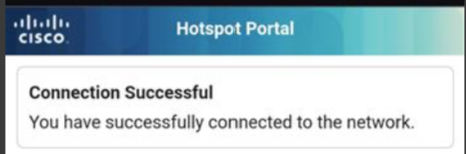
With all of this configured, when connecting to the Guest SSID for the first time it should ask you for a password (PSK) this would be the Tunnel-Password you set in the Authz profiles, so in this case PleaseChangeMe. Once authenticated, it should redirect you to the Splash page to complete, once done, you will be connected to the SSID.


Hopefully this helps! I don’t think this is officially supported by Cisco as I couldn’t find proper documentation that bought these items together, but it works for me at the moment.
p.s remember if you change the PSK you need to change the tunnel-password attribute in all associated Authz Profiles.